Repairing a recovered server
If you restore a system to a destination machine with different hardware, the restored system might not be able to boot. Drivers might be missing for boot-critical devices, and the Hardware Abstraction Layer (HAL) and kernel might not be optimal for the destination machine. You can repair boot-critical devices and perform HAL and kernel repairs using the BMR Agent.
Some drivers, such as network drivers, are not necessary for booting a system. After starting a recovered server, Windows can update drivers for devices that are not boot-critical.
Windows Server can repair drivers at boot if the drivers are provided with Windows.
To repair a recovered server:
-
If the BMR Agent detects that system repairs are necessary after a recovery, the repair wizard starts automatically at the end of the recovery.
To start the repair wizard manually, click Repair My System on the Server Backup - Public Cloud: BMR Agent page.

-
In the operating system list, select the operating system to repair.
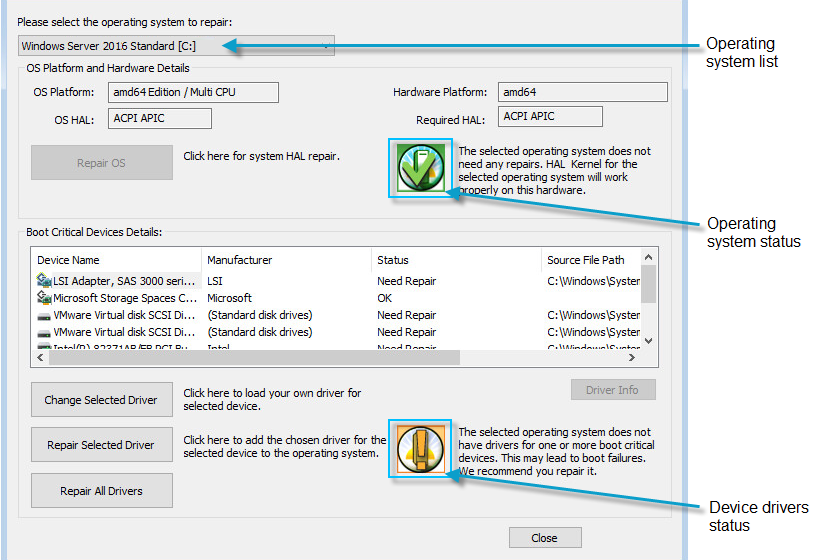
The Repair wizard shows information about the operating system, hardware, and boot-critical devices. Status icons appear for the operating system and device drivers. For more information, see Items in the Repair wizard.
-
If a yellow operating system status icon
 appears in the OS Platform and Hardware Details area, the operating system needs to be repaired. Click Repair OS.
 -
If a yellow status icon
appears in the Boot Critical Devices Details area, at least one boot-critical driver needs repair. Do one or more of the following:-
To repair drivers for all boot-critical devices that need repair, click Repair All Drivers.
-
To repair the driver for one boot-critical device that needs repair, click the device name and then click Repair Selected Driver.
If the BMR Agent cannot automatically repair the driver, a Browse for Folder dialog box appears. If you added the driver when you created recovery media for restoring to hardware or to a virtual machine (see Recovering a Windows server to hardware or to a virtual machine), you can find the driver (.inf) files in the Boot drive (usually X:\) in \Windows\System32\RestoreApp.
-
To install a specific driver for a device, click the device name and then click Change Selected Driver. In the Browse for Folder dialog box, select the folder that contains the .inf file. If the BMR Agent cannot find a matching .inf file in the selected folder, a message appears.
Note: If the BMR Agent does not find the best driver for a device, it might use a more generic driver. Ideally, provide the latest driver (from the vendor) for your specific hardware.
-
-
Click Reboot or Shutdown.
The Reboot button appears if you recovered the server to physical hardware or to a virtual machine. The Shutdown button appears if you recovered one or more servers to EC2. You must finalize recovered servers in EC2 before you can reboot them, as described in the Disaster Recovery User Guide downloaded when you started the recovery. See AWS IAM role for recovering servers to the AWS cloud.
-
In the confirmation message box, click Yes.